
Introduction
If you’re checking out a ClickUp review in 2026, the very first thing you’ll notice is how it tries to pull absolutely everything into one single spot. Instead of making you jump around between five different apps, ClickUp just throws project management, task tracking, docs, teamwork stuff, and time tracking all into one workspace.
Honestly, it sounds amazing, but there’s a catch. ClickUp gives you a crazy amount of freedom to customize everything. That’s awesome if you’re juggling a bunch of projects or managing a team, but at the same time, all those options can feel super overwhelming when you open it for the first time.
If you’re a freelancer, running a solo show, or working in a small team, it’s really handy for keeping your projects organized, assigning tasks, setting deadlines, tracking progress, and keeping all your work stuff in one place. You can also pick how you want to view your work and build a setup that fits exactly how you like to get things done.
In this 2026 ClickUp review, we’re going to break down its features, pricing, the good and the bad, how easy it actually is to use, and whether it’s worth bringing into your daily routine.
Table of Contents
About This Review
At ToolMapHQ, we don’t just look at a list of features and call it a review. We care about how the product actually feels to use, along with its features, pricing, how easy or hard it is to handle, and if it’s really worth your money. Plus, whenever we can, we double-check all the important details and pricing straight from official sources to make sure they’re right.
What Is ClickUp?
ClickUp is a work management tool that lets people handle all their work from one place. Instead of using different apps for tasks, project management, documents, conversations, and time management, ClickUp brings all these things together in one workspace.
Here you can divide your work according to projects and tasks, assign work to people, set due dates for completing work, and also see how much work has been completed. You can work together with your team members and see the same work in different ways, like in List, Board, Calendar, or Gantt view. ClickUp is so flexible that it can be used not only for managing small tasks but also for big projects.
The idea of this tool is very easy to understand: it gives users full freedom to organize work according to their preferences. However, because of this very quality, this app also becomes a bit complex, and it takes some time to understand it properly and get used to it.
Quick Verdict
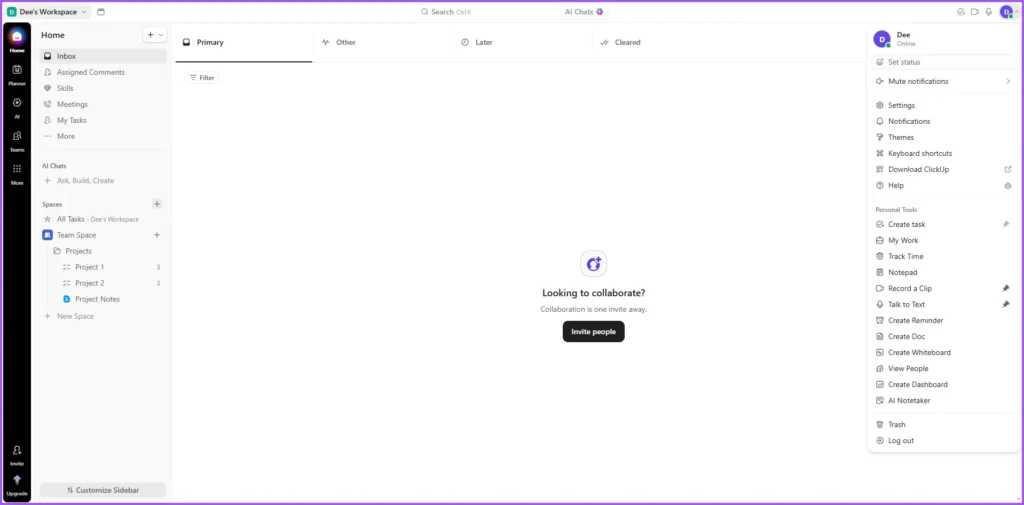
ClickUp is a very effective project management and productivity platform, which brings a lot of things of your work into one single place. Its flexibility, features to work together, and range of different tools make it a strong option for freelancers, solopreneurs, and teams handling many projects.
The catch is that when you are new to this platform, it can take a bit of time to understand ClickUp. If you prefer a simple task manager, then this might feel like more than you need. But if you want deep customization and the ability to make your own workflow, then ClickUp is worth considering.
Pros & Cons
Pros
- Powerful project management — ClickUp gives you multiple ways to organize projects, tasks, deadlines, and workflows.
- Highly customizable — You can adapt views, statuses, fields, and workflows around the way you prefer to work.
- Strong collaboration — Teams can assign tasks, share information, and work together from a shared workspace.
- Useful for remote teams — Team members can stay connected to the same projects and tasks even when working from different locations.
- Generous free plan — The Free Forever plan provides a substantial set of features for users who want to try ClickUp without paying.
Cons
- Can feel overwhelming at first — New users may need some time to understand ClickUp’s workspace structure and the number of available options.
- More than some users need — If you only want a simple to-do list or basic task manager, ClickUp can feel like overkill.
- Some features have plan-based limits — Certain views, storage, automation, and other features have different limits depending on the plan.
- Mobile experience can be less consistent — Some users report performance and usability issues on mobile, although experiences vary.
Key Features of ClickUp
Task & Project Management
Task management is at the very core of ClickUp. You can create tasks, assign them to team members, set due dates and priorities, add sub-tasks, and track their progress from a central workspace. This makes it possible to manage everything from a simple personal to-do list to larger and more structured projects for clients or teams.
What we like here is the control you get over a task without jumping between different tools. You can keep details, deadlines, responsibilities, and progress connected to that same piece of work.
Multiple Project Views
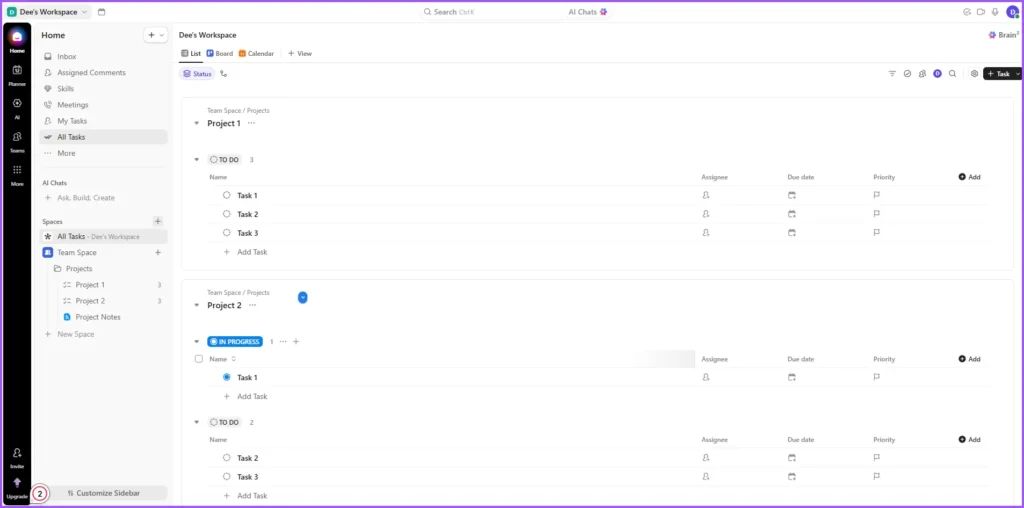
One of the biggest strengths of ClickUp is that you can see the same work in many different ways. Depending on the way you prefer to work, you can use List, Board, Calendar, Gantt, and other views to organize and track your projects.
For example, a content workflow can be seen like a simple task list, while a Board view can show that same work moving from Research to Writing, Editing, SEO, and Published. This flexibility comes in very handy when different projects or people of the team need different ways to see the same work.
ClickUp Docs
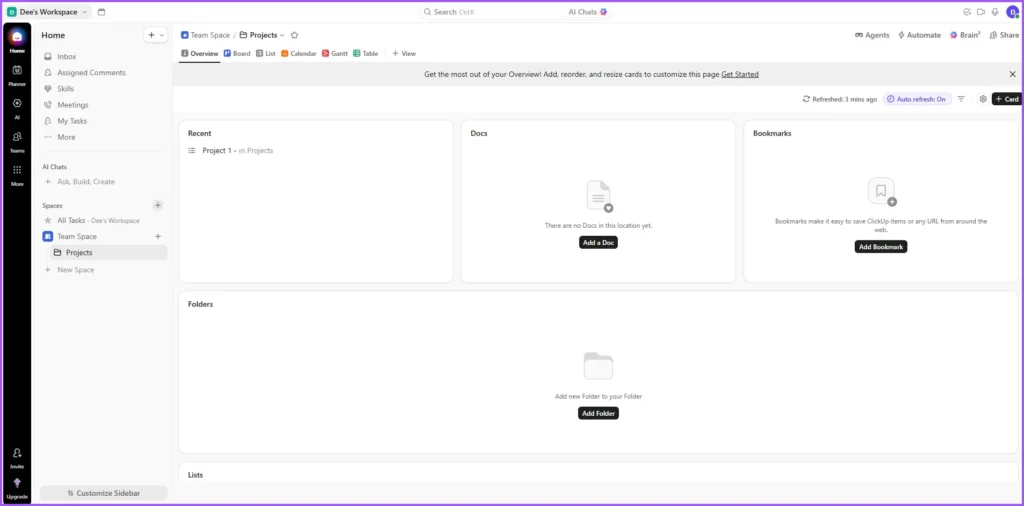
ClickUp Docs gives you the facility to make documents, notes, project plans, and other written content inside that same workspace of your tasks. Instead of keeping these documents in a completely separate tool, you can use Docs for things like project documentation, meeting notes, content planning, or standard operating procedures (SOPs).
For freelancers and small teams, having project notes and tasks connected to them in the same workspace makes it easy to keep everything connected with each other.
Automations
ClickUp also includes automation features which can handle the repetitive parts of a workflow by themselves. You can set rules that trigger actions when certain conditions are fulfilled, such as changing a task’s status, assigning work, or updating other details of the task.
Once you make such a workflow which you use regularly, then this can save a lot of time, although if you are new to ClickUp then setting more advanced automation might require a bit of experimentation.
Time Tracking
ClickUp includes built-in time tracking, by which you can record how much time you are spending on working on tasks. This can be useful for those freelancers who send bills to clients according to per hour or simply want to understand where their working time is going.
Having time tracking connected directly with tasks is convenient because you do not need any separate timer for basic time-recording needs.
ClickUp Brain & AI
ClickUp Brain brings AI features directly inside the ClickUp workspace. Depending on the feature and plan, it can help in tasks such as searching workspace information, summarizing content, generating or improving text, and working with information present in your entire ClickUp environment.
The interesting thing is that this AI stays connected with your existing work itself, rather than being completely separate from it. For those users who are already managing most of their projects inside ClickUp, having that context can make AI assistance more practical.
Other Available Features
ClickUp also includes features such as Goals, Dashboards, Forms, Whiteboards, Chat, Workload management, Custom Fields, Templates, and integrations. Some of these are more useful for specific workflows and team setups than for everyday task management.
Pricing
Current annual-billing prices on ClickUp’s public pricing page:
| Plan | Price | Best for |
| Free Forever | $0 | Personal use and trying ClickUp |
| Unlimited | $7/user/month | Small teams |
| Business | $12/user/month | Growing / mid-sized teams |
| Enterprise | Custom | Larger organizations |
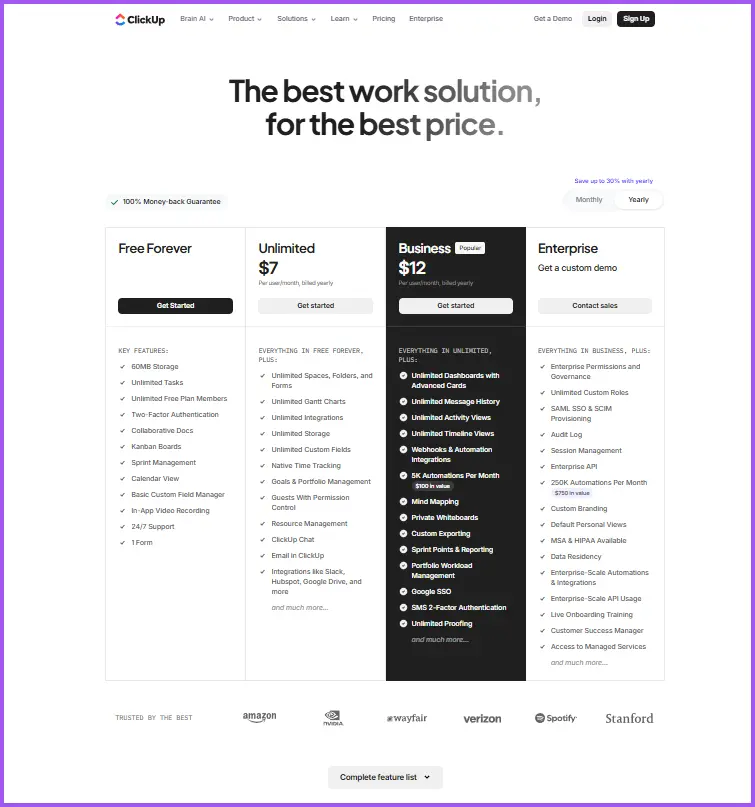
ClickUp’s pricing page currently shows “Save up to 30% with yearly” and also provides a Monthly/Yearly toggle, so the table above is specifically the annual-billing price, not a claim about monthly billing.
ClickUp’s AI features are priced separately, so if you specifically want ClickUp Brain, check the current pricing before subscribing.
What you get
- Free Forever is actually quite substantial: 60 MB storage, unlimited tasks, unlimited free-plan members, Collaborative Docs, Kanban Boards, Sprint Management, Calendar View, basic Custom Fields, in-app video recording, 2FA, and 24/7 support.
- Unlimited adds unlimited storage, Spaces/Folders/Forms, Gantt charts, integrations, Custom Fields, native time tracking, Goals & Portfolio Management, permission-controlled guests, Resource Management, ClickUp Chat, and Email in ClickUp.
- Business adds things such as advanced Dashboards, additional reporting capabilities, advanced automation features, workload management, timelines, and other team-oriented functionality.
Ready to try ClickUp?
If ClickUp looks like a good fit for the way you work, you can start with the Free Forever plan and see how it fits into your workflow before committing to a paid plan.
Our take on the pricing
The Free Forever plan is a surprisingly good option to start with, especially for someone working alone or simply wanting to see whether ClickUp fits their workflow. However, the storage limit of 60 MB is the main restriction that stands out, and heavier workflows can eventually push you towards a paid plan.
At $7 per user per month on annual billing, the Unlimited plan is the place where ClickUp starts feeling much more complete. You get unlimited storage, Gantt charts, native time tracking, integrations, and many other features that can matter when you are managing more serious projects.
Performance
In our experience, once you understand how the workspace is organized, ClickUp feels very effective. Creating tasks, assigning work, working together with team members, and switching between different views is very straightforward, and having everything connected in one single workspace can make project management feel more organized.
The main adjustment is getting used to the way ClickUp structures your work. If you are new to this platform, then the number of options and the hierarchy of Workspace, Space, Folder, List, and Task can make the starting few sessions feel a bit heavy (overwhelming). However, once that structure starts to make sense, its flexibility becomes much more useful.
Working together (Collaboration) was one of the easiest parts of our experience. A team can work from a shared workspace, assign responsibilities, and keep work connected to the project in one place, even if members are working from different locations.
Performance can also depend on how heavily you use the platform. ClickUp gives a very big feature set, so its experience is not at all like using a lightweight task manager. Some community users have also reported problems in performance and mobile usability, although those experiences are not the same for everyone.
Everyday Tasks
For everyday work, ClickUp works well when you need more than a basic to-do list. Creating tasks, setting deadlines, checking progress, and switching between views can all happen from the same workspace. For a freelancer or small team managing several projects, that can reduce the need to keep separate tools for different parts of the workflow.
Who Should Use ClickUp?
ClickUp is an excellent option for independent professionals (freelancers), solopreneurs, small teams, and businesses that need more than a simple task manager. If you are managing multiple projects, working together with clients or team members, or if you want your tasks, documents, deadlines, and other work-related information to stay connected in one place, ClickUp provides plenty of flexibility.
This is extremely useful, especially for those people who like to mold their workflow according to their own wish. You can choose by yourself how to organize projects, which views you want to use, and how tasks move forward through different stages. This makes it possible to construct ClickUp according to your workflow, instead of forcefully imposing your work into a highly simple structure.
On the other hand, if you only need a highly simple and straight to-do list, then ClickUp might not be the best option for you. It can take some time to understand the huge number of options available in this, and if you do not require that level of control, then more simple productivity tools can prove to be more convenient for you.
Final Verdict
ClickUp is one of those tools that makes more sense once you understand how you want to organize your work. It provides extreme control over projects, tasks, collaboration, and workflows, which makes it a strong option for independent professionals (freelancers), solopreneurs, and teams conducting multiple projects.
The process of learning and understanding it (learning curve) is its main trade-off. If you want such a simple task manager that you can open immediately and understand just by looking at it, then ClickUp can feel like more than your requirement. But if you are ready to invest a bit of time in establishing your workspace and understanding how everything connects with each other, then its flexibility can be well worth that time.
Overall, we believe that if you want such a powerful workspace that can develop along with your workflow, then thinking about ClickUp is appropriate. Its ‘Free Forever’ plan provides a good medium to test it before making a payment, while its paid plans appear more meaningful when you require additional storage, features, and control.
Explore More Productivity Reviews
Frequently Asked Questions
Is ClickUp free?
Yes. ClickUp has a Free Forever plan. It includes a substantial set of features, although storage and some other features have usage limits. You can upgrade to a paid plan if you need more storage, advanced functionality, or additional control.
Is ClickUp good for freelancers?
ClickUp can be a good option for freelancers who manage multiple projects, clients, deadlines, and recurring tasks. Its customization also makes it possible to build workflows around the way you prefer to work. However, it may feel like more than you need if you only want a simple task manager.
Is ClickUp easy to learn?
ClickUp is not particularly difficult to use, but new users may need some time to understand its workspace structure and the number of available options. Once you become familiar with the way Spaces, Folders, Lists, and Tasks work together, the platform becomes easier to navigate.
Is ClickUp good for remote teams?
Yes. ClickUp provides a shared workspace where team members can assign tasks, communicate, track progress, and collaborate on projects from different locations. This makes it useful for remote and distributed teams.
Is ClickUp worth paying for?
It depends on how much of ClickUp you actually need. The Free Forever plan is a good way to test the platform, while paid plans become more useful when you need additional storage, advanced features, and greater control over your workflows.