Introduction
Knowing how to collect website access from clients sounds straightforward until you actually need access to several different accounts.
You may need to work inside their website, hosting account, domain settings, analytics, or other services before you can complete the project.
The problem is that clients don’t always know what access you need or how to give it. And when the easiest answer seems to be “just send me the password,” things can quickly become messy.
Instead of asking for everything at once, work out which accounts you actually need, ask for the right level of access, and use the platform’s own invite or access options when they’re available.
This guide walks through a practical way to handle client access without having passwords flying around in email or chat. We’ll cover the accounts you may need, a simple way to keep track of them, and when a dedicated access tool is actually worth considering.
Table of Contents
Why Getting Website Access From Clients Can Slow Down a Project
Getting access is often one of those small project tasks that seems easy until several accounts are involved. A website project may require access to the CMS, hosting, domain settings, analytics, or other services, and each one can have a different way of granting access.
The problem becomes worse when the client isn’t sure what you need. They may send the wrong login, forget an account entirely, or send credentials through email or chat and assume the job is done.
For a freelance web designer, this can lead to unnecessary back-and-forth before the actual website work can begin.
A clearer process avoids a lot of that back-and-forth. Rather than asking a client to “send all the passwords,” tell them which accounts you need, explain what you’ll be using them for, and use the platform’s invite or permission options where you can.
What Website Access Might a Freelance Web Designer Need?
Not every website project requires the same access. Start by looking at the actual work you’re going to do for the client. From there, you can figure out which accounts you’ll need access to.
The accounts you need will depend on the project. They could include:
- Website or CMS
- Hosting
- Domain or DNS
- Google Analytics
- Google Search Console
- Other tools or integrations
That doesn’t mean you should send this whole list to every client. Pick out the accounts the project actually involves. Keep the request as short as you can. Clients are more likely to deal with a clear list, and you’ll have fewer permissions to keep track of later.
Website or CMS Access
If you’re building or updating a site, you’ll probably need access to its CMS, such as WordPress, Webflow, or Shopify. The level of access depends on what you’re doing. Someone editing a few pages, for example, may not need the same permissions as someone managing the whole site.
Hosting Access
Hosting access may be necessary for server settings, files, databases, backups, or migrations. Don’t automatically ask for the main hosting password. If the hosting provider lets you create a separate user or collaborator, use that option instead. Pick the level of access that matches what you actually need to do.
Domain and DNS Access
You may need access to the domain registrar or DNS settings when connecting a domain, making DNS changes, or preparing a website for launch. You don’t necessarily need ownership of the account just to make a required DNS change.
Analytics and Search Console
You may also need access to Analytics or Search Console if the project involves SEO, traffic, or performance work. Both let clients give access without handing over their main login details.
Other Project-Specific Accounts
Depending on the project, you might also need access to an email service, form builder, payment system, integration, or another third-party tool. Only ask for these when the work actually requires them.
The basic idea is simple: get the access you need for the job, not access to everything the client uses.
Should Clients Send Website Passwords to Their Designer?
Sending a client’s main password through email or chat may get you logged in quickly, but it creates a mess later. Once a password has been sent through email or chat, it can sit there long after the project is finished. That also makes it harder to control who still has access.
If the platform allows the client to add you as another user, collaborator, or delegate, that’s usually the cleaner option. The client keeps the account, while you get the access needed for your part of the project.
Why Email Isn’t a Good Place for Passwords
- The password can remain in the email conversation or chat history.
- Someone else with access to the inbox or conversation may also be able to see the password.
- The client may also forget to change the password once the project is finished.
- It can be difficult to track which credentials were shared and where.
- The designer may receive more access than the project actually requires.
Sharing a password can solve today’s login problem, but it doesn’t give you a very clean way to manage that access afterward.
What You Can Do Instead
Whenever possible, let the platform’s own access controls handle this instead of sharing a login.
- Client owns the account.
- Client invites the designer.
- Appropriate permission is assigned.
- Designer completes the work.
The client keeps control of the account, while you get the access needed for the project.
If the platform doesn’t give you a practical way to add another user, use a secure credential-sharing option rather than dropping the password into an email or chat.
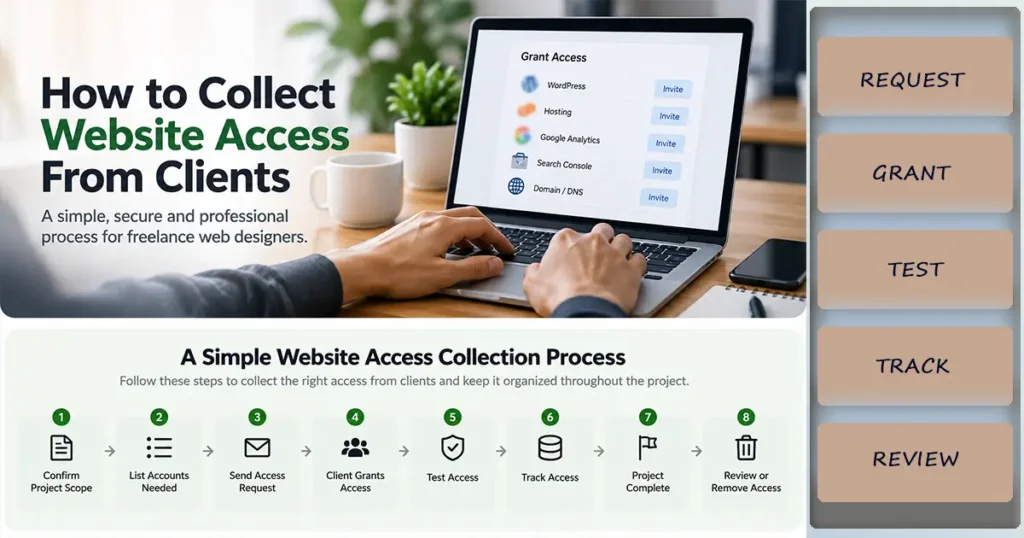
A Simple Website Access Collection Process
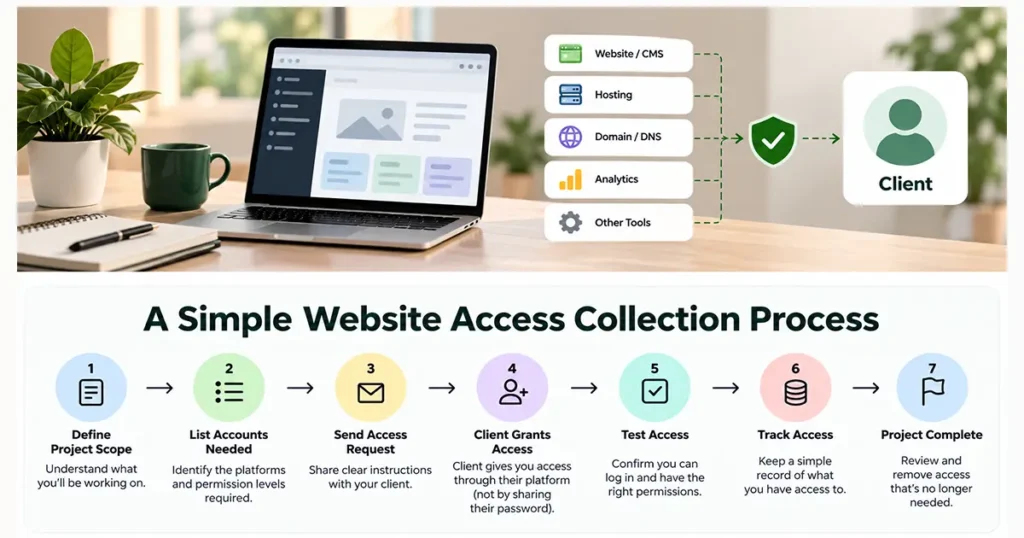
This doesn’t need to become a complicated process. Figure out which accounts you’ll need, ask for the right access, and make sure everything works before you get into the main project.
Step 1 — List the Accounts You Actually Need
Start with the accounts you’re actually going to use: the CMS, hosting, domain or DNS, Analytics, Search Console, and any other tools involved in the project. If you won’t be using an account, leave it off the list.
Step 2 — Explain Why You Need Each One
Give the client a quick reason for each request. For example: “I’ll need access to check indexing and search performance during the SEO work.” That small bit of context makes the request much easier to understand.
Step 3 — Ask for Appropriate Permission
Work out the permission level before you send the request. If you can do the job with a lower level of access, there’s no need to ask for more.
Step 4 — Ask the Client to Invite You
When the platform lets the client add another user, have them add your own account. You can then work with your own login instead of sharing theirs.
Step 5 — Test the Access
Once the invite comes through, test it. Make sure you can get in and do the work you actually need to do. It’s much easier to fix a missing permission now than halfway through the project.
Step 6 — Keep Track of What You’ve Received
A basic checklist can be enough.
| Account | Access Needed | Received | Tested |
| Website/CMS | Editor/Admin | ✓ | ✓ |
| Hosting | As required | ✓ | ✓ |
| Domain/DNS | DNS access | ✓ | ✓ |
| Analytics | Appropriate user access | ✓ | ✓ |
| Search Console | Appropriate user access | — | — |
Step 7 — Review Access When the Project Ends
When the project is done, take a quick look at the access you’ve been given. Remove your user account or step down the permissions where appropriate. That way, an old project doesn’t leave you with access you no longer need.
What If the Client Doesn’t Know How to Give You Access?
Some clients simply won’t know where to find the access settings or which option to choose. That’s pretty common. It doesn’t mean you have to fall back to asking for their main password.
Give Platform-Specific Instructions
Give them only as much information as necessary to get the job done: such as where the setting will be found, which email ID to enter, which permission to select, and what will happen after sending the invite. You do not need to write a full tutorial every time.
Do not ask for the main password just for the sake of convenience
If there is an option to add a separate user or collaborator on the platform, help the client use that instead. It might take an extra minute or two, but it will keep your setup very clean and secure.
Use a Dedicated Access-Collection Tool When Manual Requests Become a Problem
If you’re doing this with client after client, explaining the same access steps over and over can get old fast. A dedicated tool can give you one repeatable way to request and collect access instead of rebuilding the process every time.
If you’re still collecting website content from clients as part of the same onboarding process, see our guide on how to collect website content from clients for a practical step-by-step approach.
If you only do this occasionally, the platform’s own access controls may be all you need. If you’re repeating the same process with clients every week, a dedicated tool starts to make more sense.
Manual Access Sharing vs. Dedicated Access-Collection Tools
You don’t automatically need another tool for this. If you have a few clients and only need access to a handful of platforms, the built-in invitation and permission options may do the job just fine.
The extra tool becomes more useful when you’re doing the same access routine for client after client, especially when several services are involved.
| Method | Best for | Main limitation |
| Email or chat | Basic project information | Not a good place for passwords |
| Platform invitation | Individual accounts | Can require separate requests across platforms |
| Access checklist | Tracking what you’ve received | Doesn’t actually manage or grant access |
| Dedicated access-collection tool | Repeated, multi-platform access requests | Adds another software cost |
When Manual Access Sharing Is Enough
- You work with only a few clients.
- The project uses a small number of platforms.
- Those platforms already provide straightforward user invitations.
- You’re comfortable tracking access with a simple checklist.
If your current setup works and you’re not wasting time on it, there’s no reason to add another tool.
When a Dedicated Tool Starts Making Sense
A dedicated access tool starts to make sense when you’re collecting access from different clients and platforms on a regular basis.
For example, you might want one consistent way to:
- Sending access requests to clients
- Explaining what the client needs to do
- Collecting access across multiple platforms
- Repeating the same process across different projects
The real question is whether it saves you enough time and hassle to justify adding another tool to your workflow.
Where Leadsie Fits
If you’re collecting access regularly, a dedicated tool can save you from sending a fresh set of instructions for every platform on every project.
Leadsie is built for this kind of access request. Rather than asking clients to send you their login details, you can use its access-request flow to have them grant access to supported platforms.
What Leadsie Can Help With
Leadsie is built for this kind of access request. Rather than asking clients to send you their login details, you can use its access-request flow to have them grant access to supported platforms.
For a freelance web designer, something like Leadsie can be handy if you’re constantly collecting access from different client accounts.
- Sending access requests to clients
- Guiding clients through the access process
- Requesting access to supported platforms
- Avoiding the need to collect passwords through email or chat
- Repeating the same process across different projects
The bigger benefit isn’t just avoiding password sharing. It’s having the same access process ready to use for each client.
When Leadsie May Be Useful
A dedicated tool becomes more useful when you’re juggling several clients and regularly asking for access to multiple platforms.
For example, if every new website project involves asking for access to WordPress, Google properties, hosting, or other supported services, having a standardized process can reduce the amount of manual explanation and follow-up involved.
If it’s an occasional project and you only need one or two platforms, the platforms’ own invitation systems may be all you need.
When You May Not Need a Dedicated Tool
Just because there’s a tool for something doesn’t mean you need it.
If clients already understand how to grant access and you aren’t spending much time chasing permissions, a simple checklist and the platforms’ own access controls may be enough.
If you’re considering Leadsie for your workflow, you can also read our Leadsie Review 2026 for a closer look at how it works.
A Simple Rule for Collecting Client Access
You don’t need the highest level of access by default. You need enough access to get your part of the job done.
Before you send the access request, run through three quick questions:
- What will I actually be working on?
- What level of permission does that work require?
- Can the client add me through the platform instead of sharing a password?
If the platform lets the client add you as a user, collaborator, or delegate, use that option when it’s suitable for the project.
The point isn’t to collect every login a client has. It’s to get the access you need, avoid permissions you don’t need, and keep the whole process manageable from start to finish.
Frequently Asked Questions
H3: Should a web designer ask clients for their passwords?
It’s better not to have clients send their main account passwords through email or chat. If the platform lets them add another user, invite a collaborator, or give delegated access, use that option instead. The client keeps control of the account, while you can work with your own login.
What access does a freelance web designer need from a client?
There’s no single access list that works for every project. Depending on the work, you may need access to the website or CMS, hosting, domain or DNS settings, Analytics, Search Console, or another service connected to the website.
Before sending an access request, go through the list and remove anything you won’t actually need.
Should clients give web designers hosting access?
If the project involves server files, databases, backups, migrations, or other hosting-related work, you may need hosting access. But that doesn’t mean the client has to give you their main hosting login.
If the hosting provider supports separate users or collaborator access, the client can add you that way and choose the permissions relevant to the project.
How should clients share WordPress access?
For a WordPress site, the client can normally create a separate user account for the designer and assign the appropriate role. You can then work from your own login rather than using the client’s credentials.
The role should match the work you’re responsible for. Someone making content changes may not need the same level of access as someone managing the whole website.
How can freelance web designers collect client credentials securely?
Start by working out which accounts the project actually requires. Where possible, have the client add you through the platform’s own user or invitation system.
If a service doesn’t provide a practical way to give you separate access, use a secure credential-sharing method instead of sending passwords through regular email or chat.
Should a client give a web designer full admin access?
Not necessarily. It depends on what you need to do.
If you can finish the work with a lower permission level, there’s no reason to request full admin access. Keeping access limited also means the client has fewer permissions to review or remove when the project is finished.